Dane Poyzer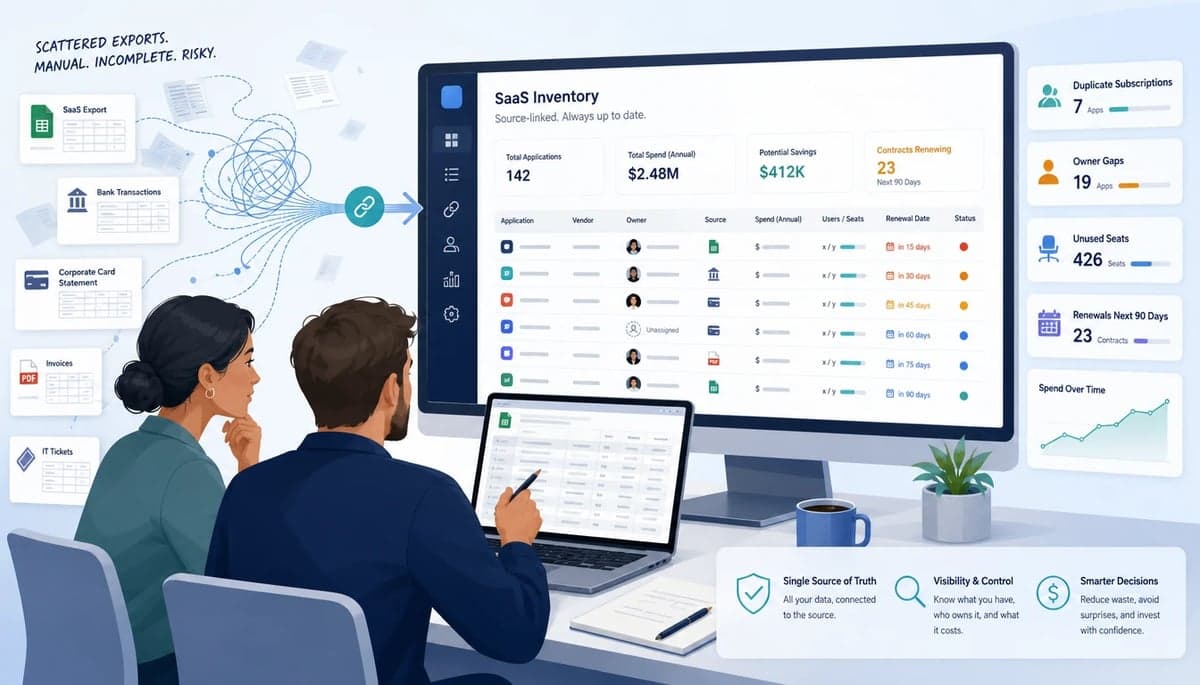
On this page13 sections
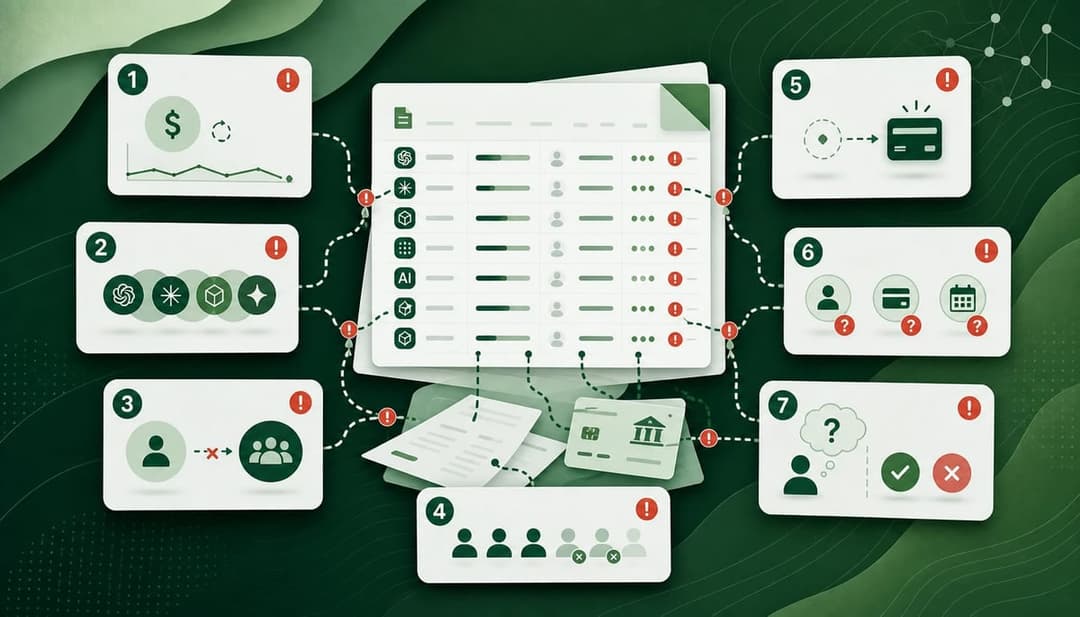
If software spend is scattered across bank exports, card statements, founder inboxes, and half-owned workspaces, building a clean record can feel harder than it should. This guide shows how to build a SaaS inventory from messy exports in 7 steps, using a beginner-to-intermediate process that usually takes 60 to 90 minutes for a small business.
By the end, you should have a source-linked SaaS inventory you can trust. That makes it much easier to spot duplicate subscriptions, owner gaps, unused seats, and renewal risks before they hit margin.
A quick note before we start: this is deliberately a DIY guide. SaaS Spend Review exists to make this review faster by turning messy spend exports into a source-linked report, but the underlying process should still be understandable. If you want to do it manually, follow the steps below. If you would rather upload exports and see whether we can do the heavy lifting for you, try SaaS Spend Review instead.
Prerequisites
- Basic spreadsheet skills in Google Sheets or Excel 365, including filters, sorting, and simple formulas
- Read-only or admin access to bank, card, accounting, and expense platforms used to pay for software
- A rough understanding of which tools count as recurring software or AI spend in our business
- Permission to check billing pages or admin panels for major tools such as CRM, design, project management, and AI apps
- A review date range, usually the last 6 to 12 months
- A shared folder where we can store exports, invoices, and screenshots for source links
Materials and tools
- Google Sheets, current web version, or Microsoft Excel 365
- A cloud storage folder in Google Drive, OneDrive, or Dropbox for raw exports and evidence
- CSV or XLSX exports from business bank accounts
- CSV or XLSX exports from company credit cards
- CSV or XLSX exports from accounting software such as Xero or QuickBooks
- CSV or XLSX exports from expense tools such as Ramp, Expensify, or Pleo
- PayPal, Stripe, or app store billing exports where relevant
- Access to billing or admin pages for key SaaS and AI tools
- A simple SaaS inventory template with columns for vendor, product, owner, seats, renewal, amount, and source link
- Optional: Power Query in Excel 365 or import tools in Google Sheets for larger exports
- Optional: A list of current staff, contractors, and former employees to check owner gaps and stale accounts
1. Start with a full export pull
We begin by collecting every place software charges can hide. This step matters because a SaaS spend audit falls apart when one founder card, staff reimbursement, or client-linked workspace gets missed.
We pull 6 to 12 months of bank exports, card statements, accounting exports, expense claims, and direct billing exports into one shared folder. We name files clearly with the source, account, and date range, and we keep the raw files untouched so each row in our SaaS inventory can link back to evidence later.
A simple naming pattern helps a lot, such as source-account-YYYY-MM-to-YYYY-MM.csv. We also keep a short checklist of payment sources before we start, so we do not forget contractor cards, PayPal, Stripe, or app store billing.
- Pulling only the main bank export and missing tools paid on staff cards or reimbursement claims. Fix this by making a payment-source checklist first.
- Mixing date ranges across files. Fix this by using one clear review window, such as the last 12 full months.
- Editing raw exports by hand. Fix this by keeping a raw folder and doing all cleanup in a separate working sheet.


2. Combine the files into one working sheet
Now we turn scattered exports into one standard table. This gives us a clean base for both a software spend audit and a working SaaS inventory.
We create one raw tab per source, then one master tab with shared columns such as date, vendor_raw, description, amount, currency, payment_source, employee, source_file, and source_link. In Google Sheets, we can paste each export into matching columns, and in Excel 365, Power Query can combine files faster and make the process repeatable.
The goal here is not perfection. We just want every transaction in one place with enough context to trace it later, including memo text, cardholder name, and negative lines for refunds or credits.
- Keeping each export in its original column layout. Fix this by forcing every row into the same standard columns before analysis.
- Dropping useful context like cardholder name or memo text. Fix this by keeping raw descriptions even when they look messy.
- Forgetting refunds and credits. Fix this by keeping negative lines so net spend stays honest.


3. Clean vendor names and remove non-SaaS noise
Messy exports usually show the same tool under several names. We clean that up here so our SaaS inventory shows real vendors instead of ten versions of the same charge.
We add a small vendor mapping table and normalize raw names with a simple formula such as =LOWER(TRIM(A2)) before assigning a final vendor value. We also mark non-SaaS items like hardware, travel, and office costs, while keeping edge cases like hosting, domains, and marketplaces if they matter to our recurring software spend.
This step is where a lot of false noise disappears. It also gives us a stronger base for a SaaS spend audit because we can total spend by vendor without missing variant spellings.
- Merging different products into one vendor too early. Fix this by cleaning vendor names first, then splitting products in the next step.
- Excluding AI tools because descriptions look vague. Fix this by checking invoices or billing pages for tools like ChatGPT, Claude, Midjourney, or API charges.
- Removing taxes or fees without noting them. Fix this by keeping a flag column so we can exclude them from analysis but still trace the source.
4. Group records into actual products, workspaces, and billing accounts
One vendor name does not always mean one subscription. This step moves us from cleaned transactions to the real units we can cancel, renew, downgrade, or review.
We create columns for product, workspace_or_account, plan, and billing_owner so one vendor can split into multiple subscriptions. That helps us separate cases like one design tool used by two teams, one CRM across client accounts, or one AI vendor with both seat-based and usage-based billing.
This is where a software spend audit becomes useful for decisions. If we group by the wrong thing, we can mistake two real client workspaces for duplicate spend or miss duplicate tools doing the same job.
- Treating every vendor as a single line item. Fix this by checking whether the vendor has multiple workspaces, brands, or client accounts.
- Ignoring reseller or marketplace billing. Fix this by tracing charges back to the actual product behind the bundle.
- Grouping by cardholder instead of subscription. Fix this by using the billable workspace or account as the main unit.
5. Add ownership, seats, renewals, and source links
A useful SaaS inventory is more than a list of charges. We add the fields that make cleanup possible, especially owner gaps, unused seats, and renewal risk.
We enrich each row with owner, admin, seat_count, renewal_date, billing_cycle, contract_term, payment_method, cancel_path, and source_link. If we already have a staff list or admin export, we can join it with XLOOKUP or VLOOKUP to flag former employees, missing owners, and tools with no clear admin.
We should avoid guessing here. If a renewal date or seat count is unclear, we check the billing page, invoice, or admin screen and link that evidence back to the row.
- Leaving owner as the cardholder name. Fix this by capturing the real business owner of the tool, not just who paid for it.
- Skipping source links. Fix this by linking each row to the invoice, billing page, admin screen, or export line that supports it.
- Guessing renewal dates. Fix this by checking the billing portal or invoice rather than inferring from one transaction.
6. Flag duplicate tools, owner gaps, and unused spend
This is where the savings usually show up. Once the inventory is complete, we can find duplicate subscriptions, stale workspaces, former-employee risk, and tools that deserve a closer review.
We add review columns such as tool_category, status, duplicate_flag, unused_seat_flag, owner_gap_flag, and renewal_risk_flag. Simple checks like COUNTIFS for similar categories, SUMIFS by vendor, and filtered views by owner or renewal month help us spot overlap across CRM, design, project management, analytics, automation, hosting, and AI spend.
At this stage, we are not trying to make every decision at once. We are building a short list of issues that deserve action, which is exactly what a small-business SaaS spend audit should do.
- Flagging duplicates by vendor name only. Fix this by comparing the job the tool does, not just the brand.
- Treating low-cost tools as harmless. Fix this by checking total annual cost and seat waste across many small subscriptions.
- Missing tools tied to former employees. Fix this by cross-checking owner and admin fields against the current staff list.


7. Decide actions and make the review repeatable
The final step is to turn findings into action. A good inventory is helpful, but the real value comes when we use it to cancel, consolidate, renew, downgrade, or review each subscription.
We assign every row a next action, an owner, and a due date. We then publish a short source-linked report, save the template, and set a monthly or quarterly review cadence so the next pass takes minutes instead of hours.
This is the exact point where a software spend audit stops being a spreadsheet exercise and starts protecting margin. If a tool is shared with clients or tied into live workflows, we confirm usage and dependencies before cancelling anything.
- Marking items for review without an owner or due date. Fix this by assigning both before we close the audit.
- Cancelling tools before checking client impact or shared workflows. Fix this by confirming usage and dependencies first.
- Treating the inventory as a one-off project. Fix this by setting a renewal calendar and repeating the process on a schedule.
Troubleshooting
- Problem: The same vendor appears under many names across cards and bank feeds → Solution: Build a vendor mapping table and keep a
vendor_rawcolumn alongside a cleaned vendor field. - Problem: Annual invoices distort monthly spend → Solution: Add both billed amount and normalized monthly amount so comparisons stay fair.
- Problem: We cannot tell who owns a subscription → Solution: Check the billing admin, invoice contact, SSO admin, or workspace members and add an owner-gap flag until confirmed.
- Problem: Shared client accounts make costs look duplicated → Solution: Add a
client_accountorworkspace_or_accountcolumn so separate billable instances stay clear. - Problem: Multi-currency spend makes totals unreliable → Solution: Keep original currency, then add a converted base-currency column using one chosen exchange-rate source.
- Problem: Marketplace charges hide the real tool name → Solution: Follow the invoice or vendor portal to the underlying product and record both the marketplace and the actual tool.
FAQ
-
How far back should we go for the first review?
For most small businesses, we start with the last 12 full months. That gives us enough history to catch annual renewals, trials that rolled over, and tools that only bill once a year. -
Should we include hosting, domains, and email platforms?
We usually do if they are recurring and matter to margin, delivery, or renewal risk. We can always tag them separately if we want a pure SaaS-only view later. -
What if we do not have admin access to every tool?
We still log the spend, payment source, and best available evidence first. Then we mark the row for follow-up so owner gaps do not disappear during the audit. -
How often should we update the SaaS inventory?
Monthly is ideal for fast-moving teams with lots of cards and AI tool experiments. Quarterly is often enough for smaller firms with steadier software spend. -
Can we run this process without accounting software?
Yes. Bank exports, card exports, and billing-page evidence are enough for a solid first pass, as long as we keep source links and a consistent date range.
Wrapping up
Once we have a source-linked SaaS inventory, our cleanup work gets much easier. We can see what we pay for, who owns it, where the risk sits, and which subscriptions should be cancelled, consolidated, renewed, or reviewed next.
You can absolutely build this manually, especially if you have the time, spreadsheet confidence, and access to the right exports. The tradeoff is that the first pass can take a few hours, and the hard part is usually not the spreadsheet itself but keeping every finding tied back to source evidence.
That is what SaaS Spend Review is designed to shorten. Upload your exports, check the preview, and get a source-linked review that points out likely duplicates, owner gaps, unused seats, renewal risks, and review priorities. If you want to see what the output looks like, compare your inventory with the SaaS Spend Review sample report, or try SaaS Spend Review and see whether it can do the heavy lifting for you.
Resources
For more context on the approach, read Introducing SaaS Spend Review. To see the kind of evidence-backed output this process is aiming toward, review the SaaS Spend Review sample report.